Theme
Truck Management
The Truck Management module (sidebar: TRUCK MANAGEMENT, URL: /assets) is where you register and manage every vehicle in your fleet.
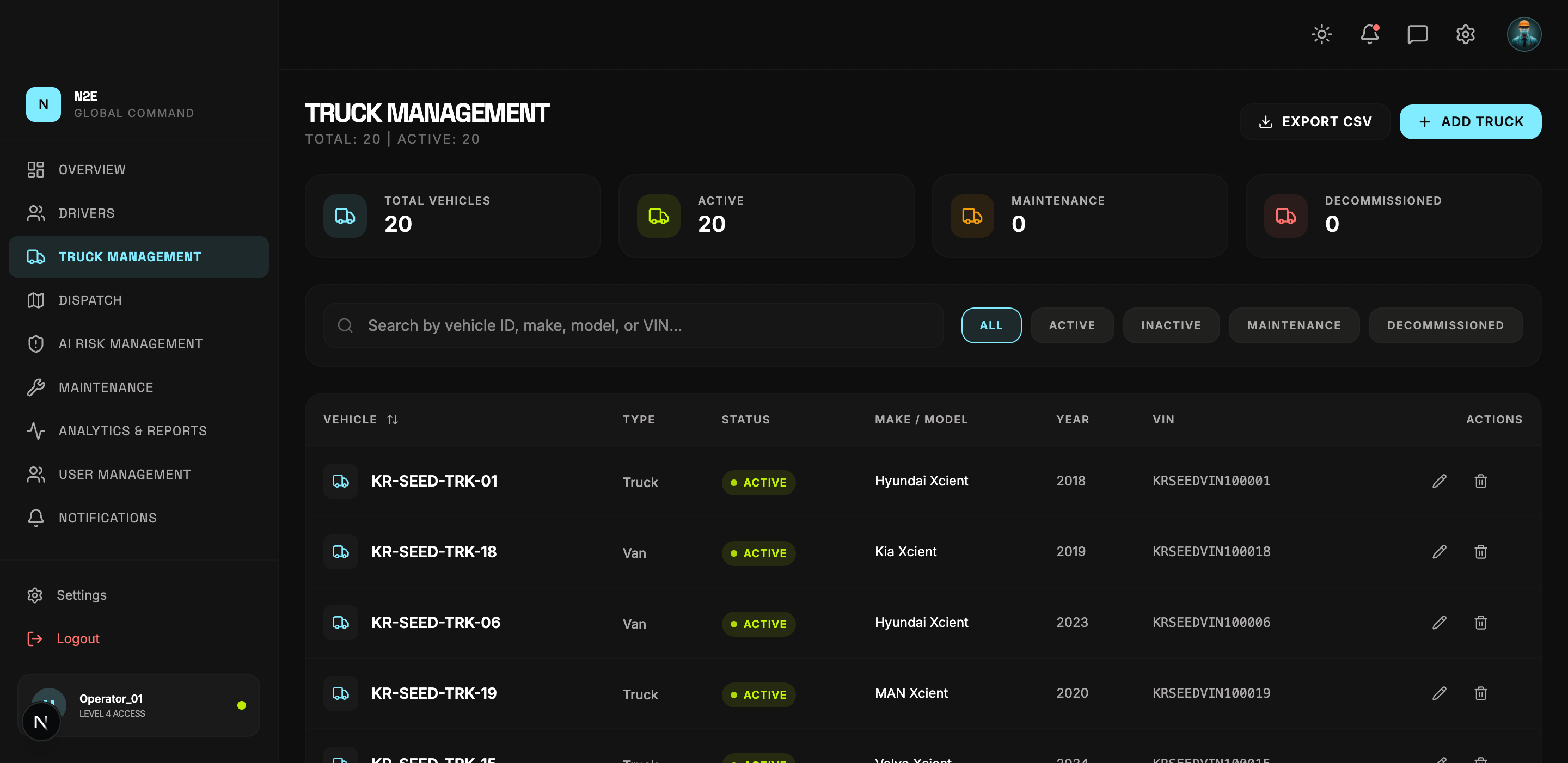
Layout
| Region | Purpose |
|---|---|
| Header counters | Total and active vehicle counts. |
| EXPORT CSV | Download the current filtered list as CSV. |
| ADD TRUCK | Open the truck creation dialog. |
| Stat cards | Total / Active / Maintenance / Decommissioned. |
| Search bar | Filter by vehicle ID, make, model, or VIN. |
| Status pills | ALL / ACTIVE / INACTIVE / MAINTENANCE / DECOMMISSIONED. |
| Asset table | Vehicle, Type, Status, Make / Model, Year, VIN, Actions. |
Adding a truck
- Click ADD TRUCK.
- Enter the vehicle ID, VIN, make, model, year and type.
- Optionally attach the assigned driver and any telematics device IDs.
- Save. The vehicle is added to the table and is immediately available for Dispatch.
Vehicle lifecycle
Vehicles move through these statuses:
- Active — in service and dispatchable.
- Maintenance — temporarily out of service, see Maintenance.
- Inactive — paused, retains history.
- Decommissioned — permanent removal, retains audit trail.
Editing details
Click anywhere on a row to open the Truck Details modal. From there you can update the make, model, year, VIN, telemetry mapping, and the current status.
Exporting
EXPORT CSV produces a download of the current filtered list. The CSV preserves the visible columns and the active filter state.