Theme
Home screen
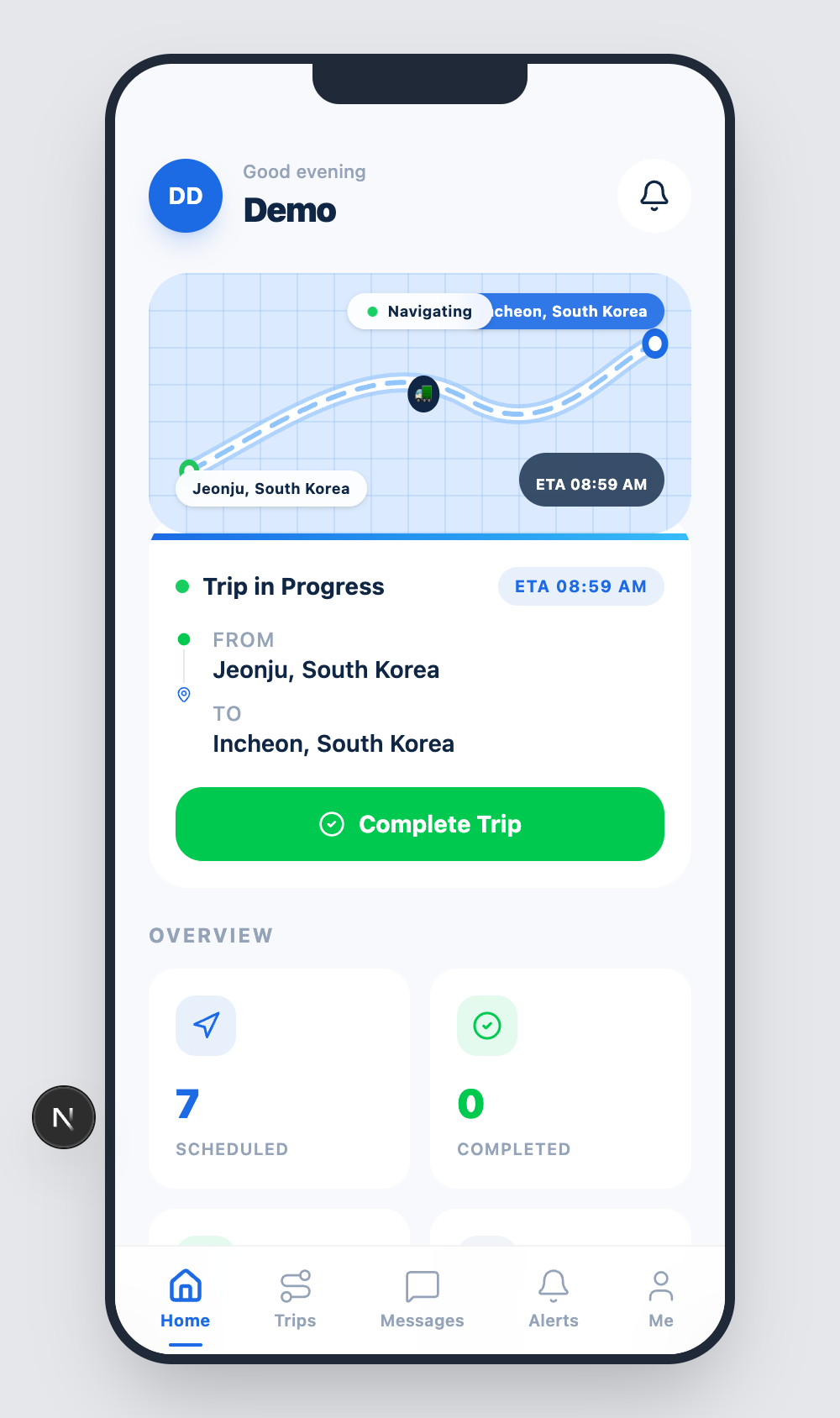
The Home tab is what you see right after signing in.
Sections
Greeting
Top of the screen: a personalised greeting (e.g. Good evening, Demo) and your avatar / initials.
Current trip card
If you have an active trip, the next card shows:
- Origin and destination with the truck emoji navigation indicator.
- A Navigating status pill and the current ETA.
- A Trip in Progress strip with from / to / ETA.
- A primary Complete Trip button to wrap up when you arrive.
If you have no active trip, this card is replaced by a hint to accept the next scheduled trip from the Trips tab.
Overview counters
A 2×2 grid at the bottom summarises your work-in-flight:
| Counter | Meaning |
|---|---|
| Scheduled | Trips assigned to you, not yet started. |
| Completed | Trips you have closed (lifetime in current period). |
| Warnings | Open warnings linked to your vehicle. |
| Unread | Unread items in your Alerts tab. |
The counters update in real time as dispatch assigns new work or as your vehicle telemetry triggers alerts.
Common actions
- Start navigating — tap the trip card to open the in-app map (or hand off to your phone's nav app).
- Complete trip — confirms arrival, sends a trip-end event to dispatch, and prompts the dashcam to finalise its file.
- Pull-to-refresh — drag the screen down to force a refresh if you suspect stale data.