Theme
Messages
The Messages tab is your direct channel with dispatch and operators.
What it does
Messages is a real-time chat — the operator's Notifications and the driver app share the same backend, so a message you send is in the operator's inbox within a second.
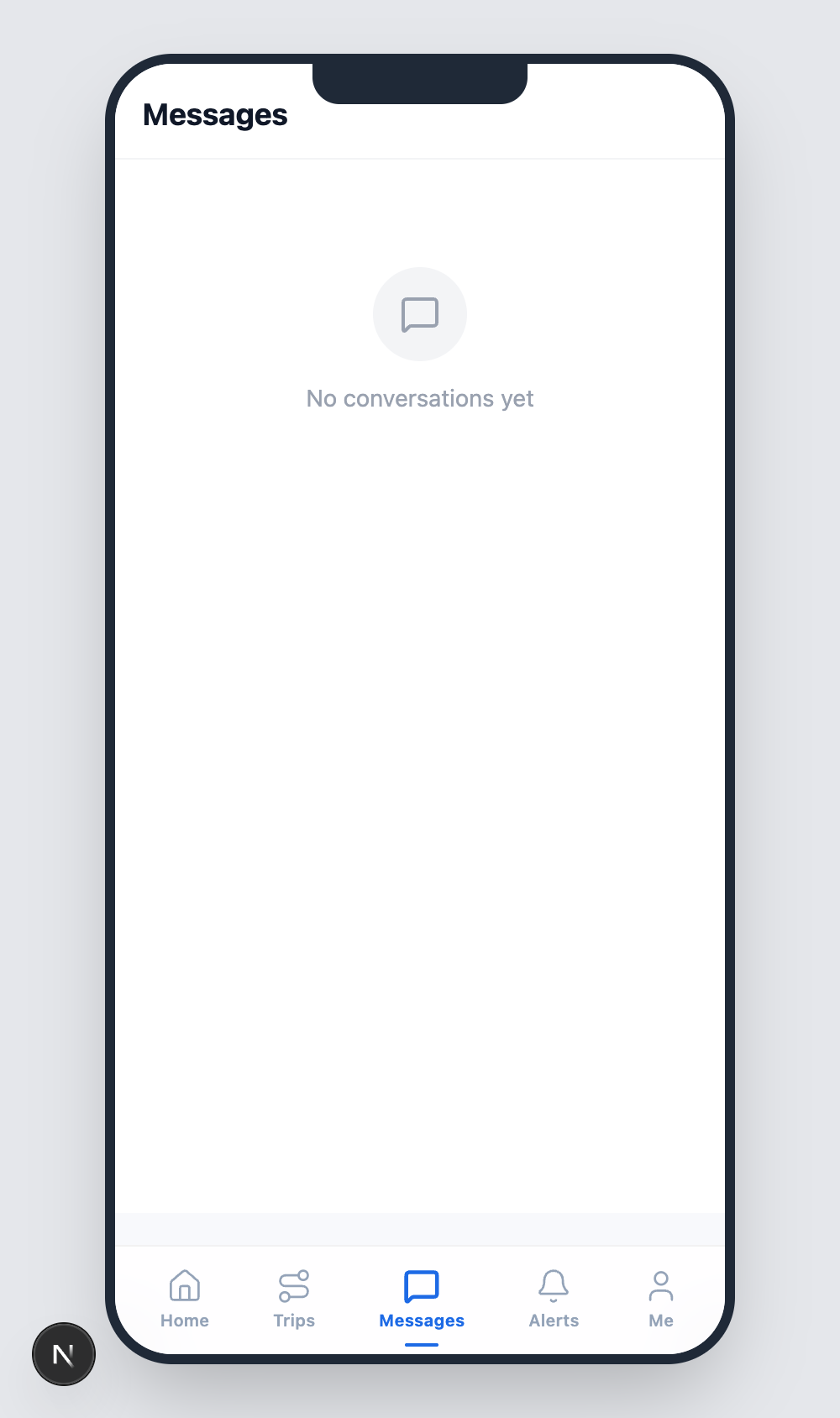
Empty state
A new driver account opens with No conversations yet. Conversations appear as soon as an operator messages you (for example: to confirm a delivery, to ask for an ETA update, or to dispatch a reroute).
Typical conversation
Once an operator messages you, a list of conversations appears here. Tap one to:
- See the full message history.
- Read incoming messages (they are marked read the moment you open the thread).
- Reply with text. Long-press a message for options like copy or reply.
When to use it
- ETA updates ("running 15 minutes late, traffic on the bridge").
- Delivery confirmations ("dropped at gate 4, signed by Kim").
- Reroute requests ("destination locked, who do I call?").
- Anything that doesn't fit a standard trip action button.
What not to use it for
- Critical safety alerts — use the alert workflow or pull over and call dispatch.
- HOS violations — these are handled by the compliance system, not chat.
- Personal messages — Messages is auditable and visible to your fleet operators.
Read receipts
Messages show a single check when delivered to the server and a double check when read by the operator (and vice versa). If a message stays single-checked for more than a minute, your connection may have dropped — the next time you regain signal, queued messages are flushed automatically.