Theme
Driver Experience
This section is for drivers using N2E in the cab. Admin and dispatcher documentation lives under Operations.
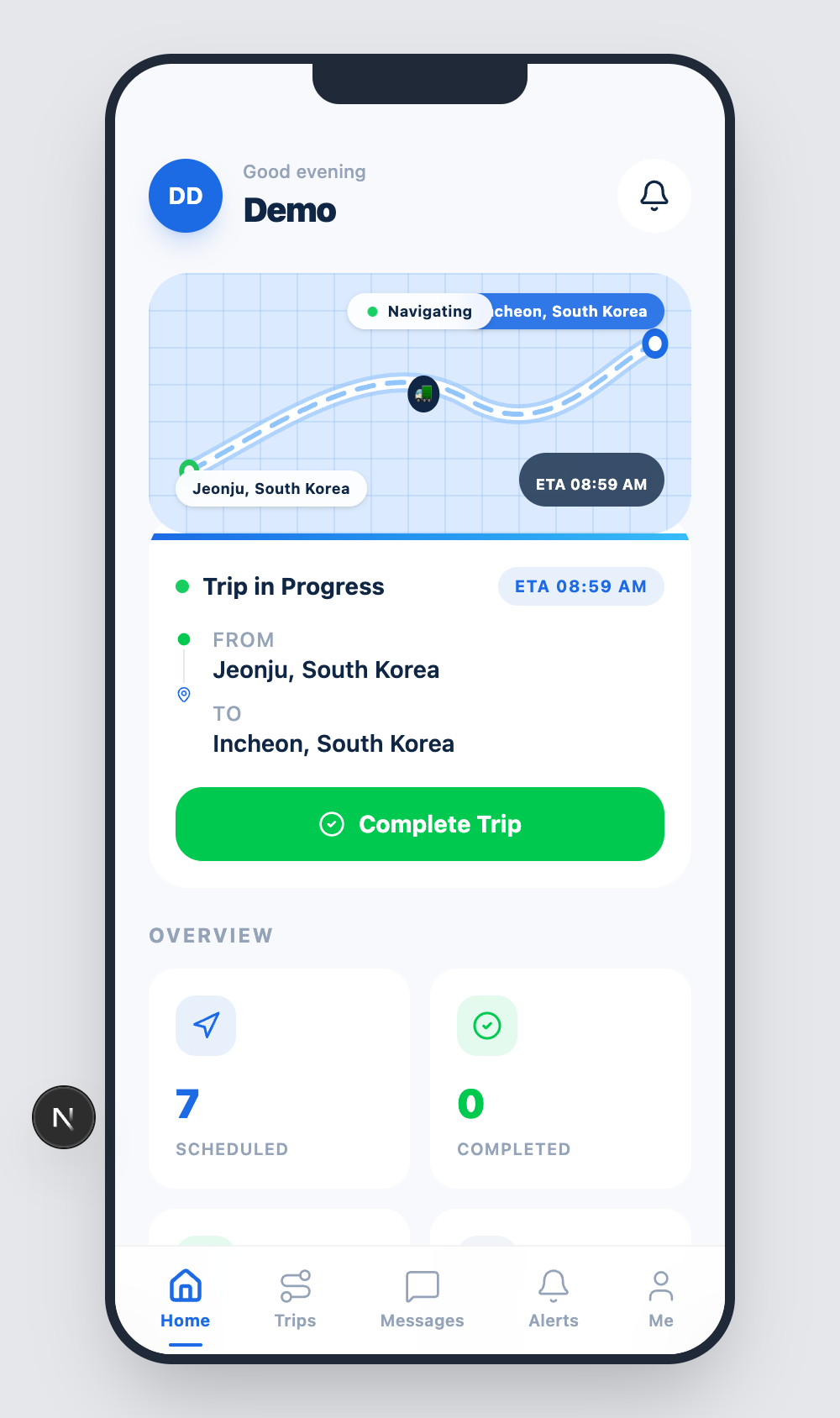
When you sign in with a Driver account, N2E takes you to a dedicated mobile-first dashboard at /driver-dashboard — no admin sidebar, no fleet-wide pages. Everything is sized for a phone or tablet so you can use it while parked.
Layout
The driver app uses a single bottom tab bar with five sections:
| Tab | What it shows |
|---|---|
| Home | Today's trip status, navigation card, overview counters. |
| Trips | All assigned trips with status, distance and stop count. |
| Messages | Conversations with dispatch and operators. |
| Alerts | Notifications routed specifically to you. |
| Me | Your profile, stats and sign-out. |
Tap any tab to switch — no page reloads. The current tab is highlighted in the bottom bar.
What you don't see
By design, drivers do not see:
- Fleet-wide dashboards, analytics or risk overview.
- Other drivers' rosters or contact details.
- User management, settings for other accounts, or the dispatch creator.
If you need any of that, ask an admin to update your role from User Management.
Signing in for the first time
- Receive your invitation email from a dispatcher.
- Tap the link → set your password.
- Verify your email with the 6-digit code that arrives.
- Sign in at
/auth→ you are sent directly to the driver dashboard.
See Sign Up & Sign In for full details.
Read on
- Home screen — what each card means.
- Trips — accept, complete, and filter your assigned trips.
- Messages — chat with dispatch.
- Alerts — operator-routed notifications.
- Profile — your account and stats.