Theme
Sign Up & Sign In
The authentication screen handles both new account creation and existing user sign-in.
Sign in
Open the application and click LOGIN from the landing page, or navigate to /auth.
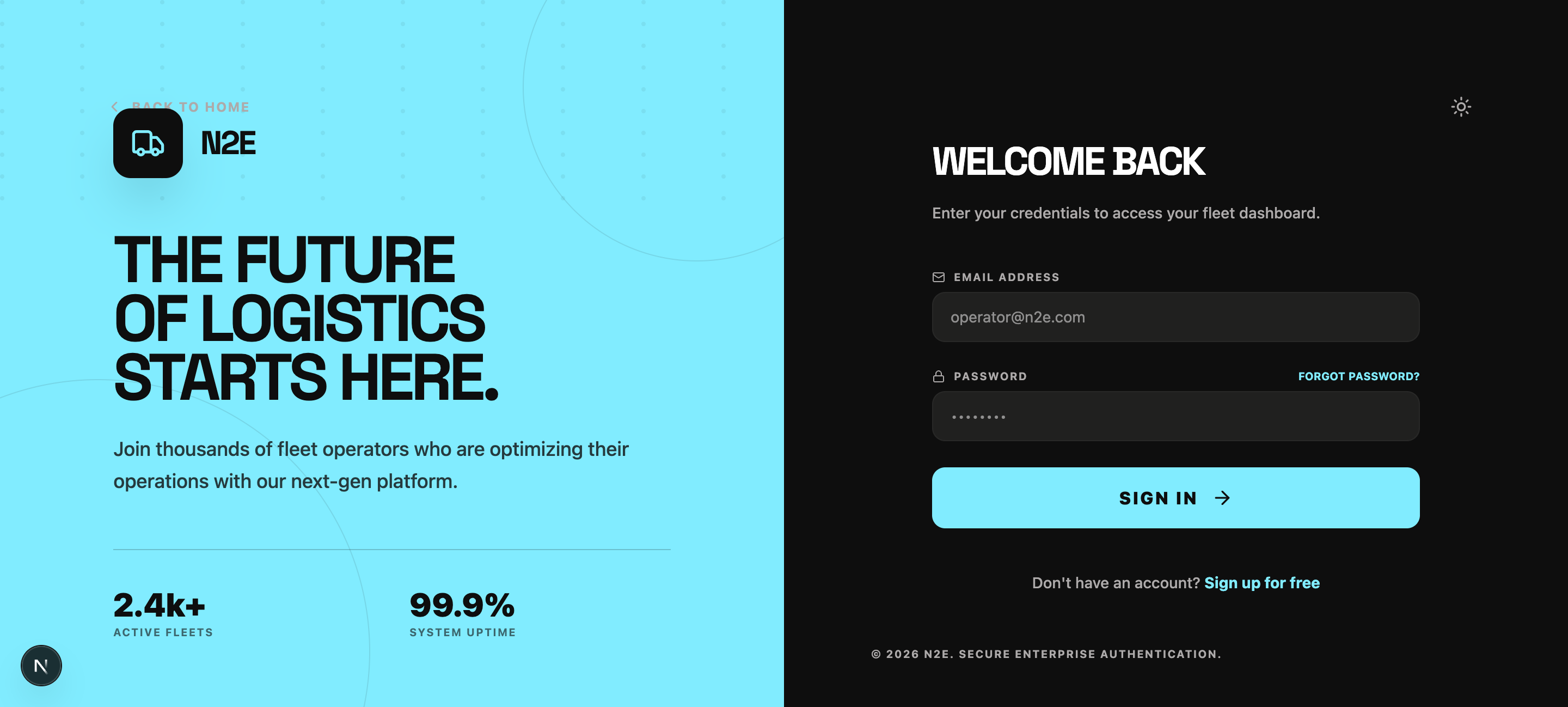
- Enter the email address linked to your account.
- Enter your password.
- Click SIGN IN.
You are redirected to the Dashboard on success. If your account is not yet verified, you will be sent to the email verification screen instead.
Forgot your password?
Click FORGOT PASSWORD? above the password field. See Password Recovery.
Sign up
If you do not yet have an account, click Sign up for free at the bottom of the sign-in card.
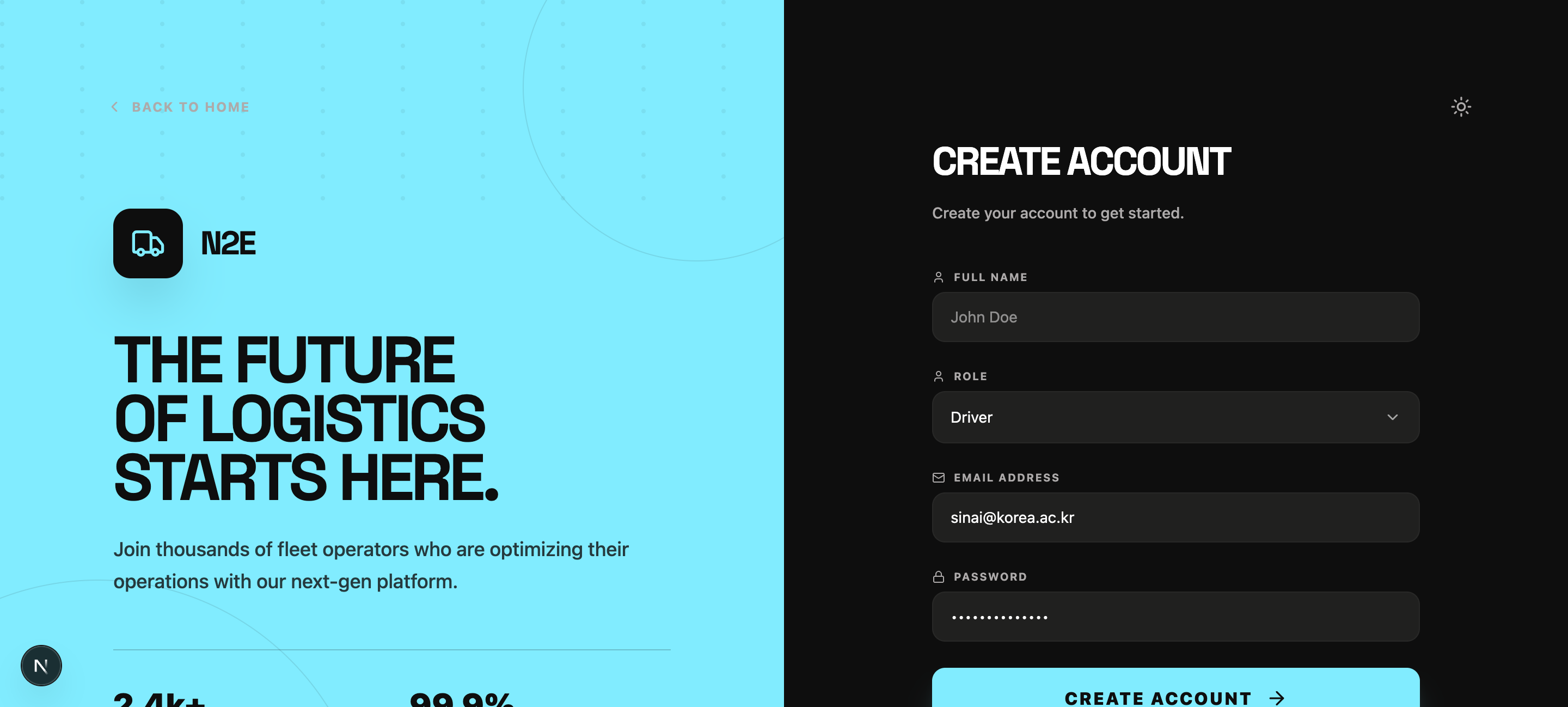
Fill in:
| Field | Description |
|---|---|
| FULL NAME | Your display name across the platform. |
| ROLE | Choose Admin for operators/dispatchers, or Driver for behind-the-wheel personnel. |
| EMAIL ADDRESS | A real address — used for verification and password resets. |
| PASSWORD | At least 8 characters with a mix of letters and numbers. |
Click CREATE ACCOUNT. A six-digit verification code is emailed to you.
Verify your email
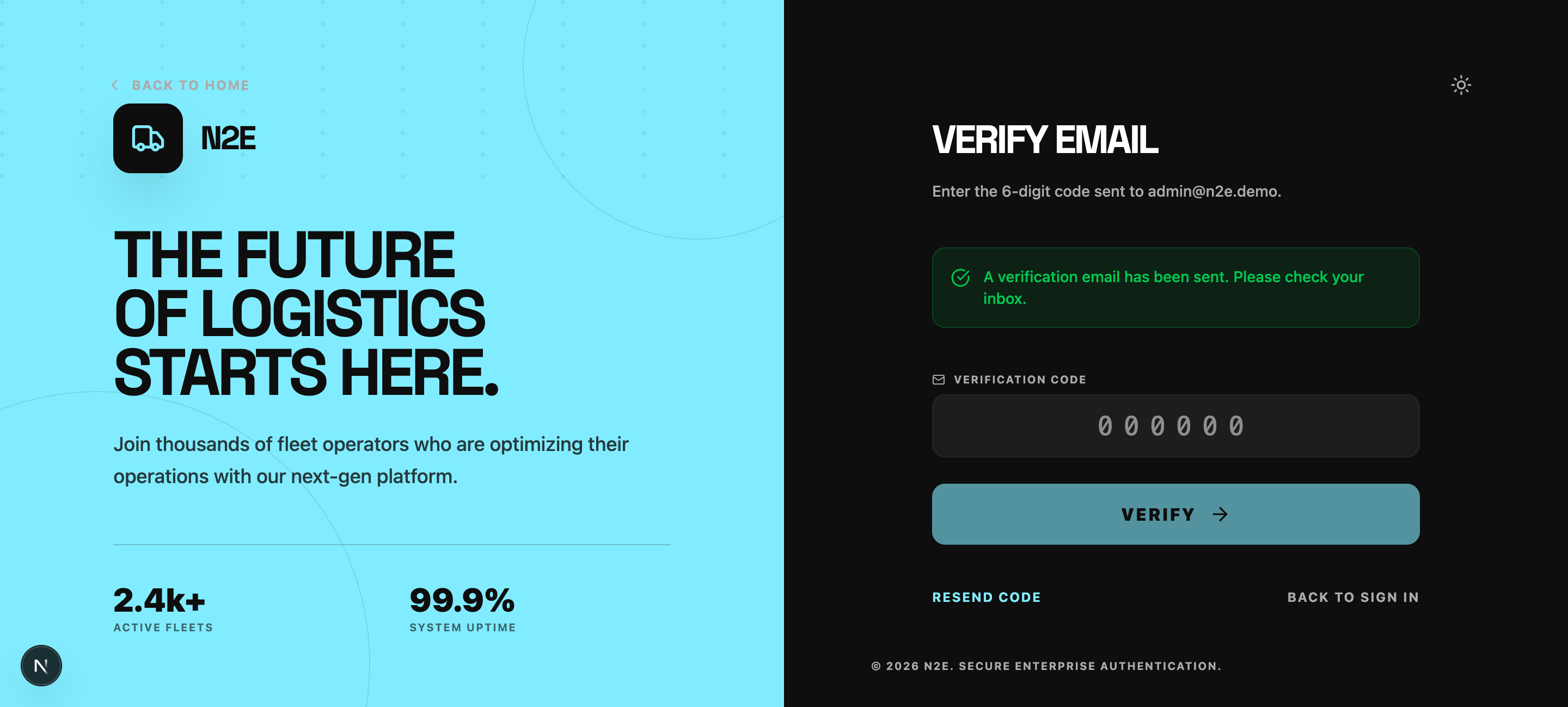
Enter the six-digit code received in your inbox and click VERIFY. The button is disabled until all six digits are entered.
If the code never arrives:
- Confirm the address you registered with is correct.
- Check your spam / promotions folder.
- Click RESEND CODE to receive a fresh code (the old one is invalidated).
- Use BACK TO SIGN IN if you need to retry from scratch.
Once verified, you are signed in automatically and redirected to your role-specific landing page.
Signing out
From any signed-in page, open the sidebar (left rail) and click Logout at the bottom. Your session is terminated and you are returned to the public landing page.