Theme
Trips
The Trips tab is the full list of trips assigned to you.
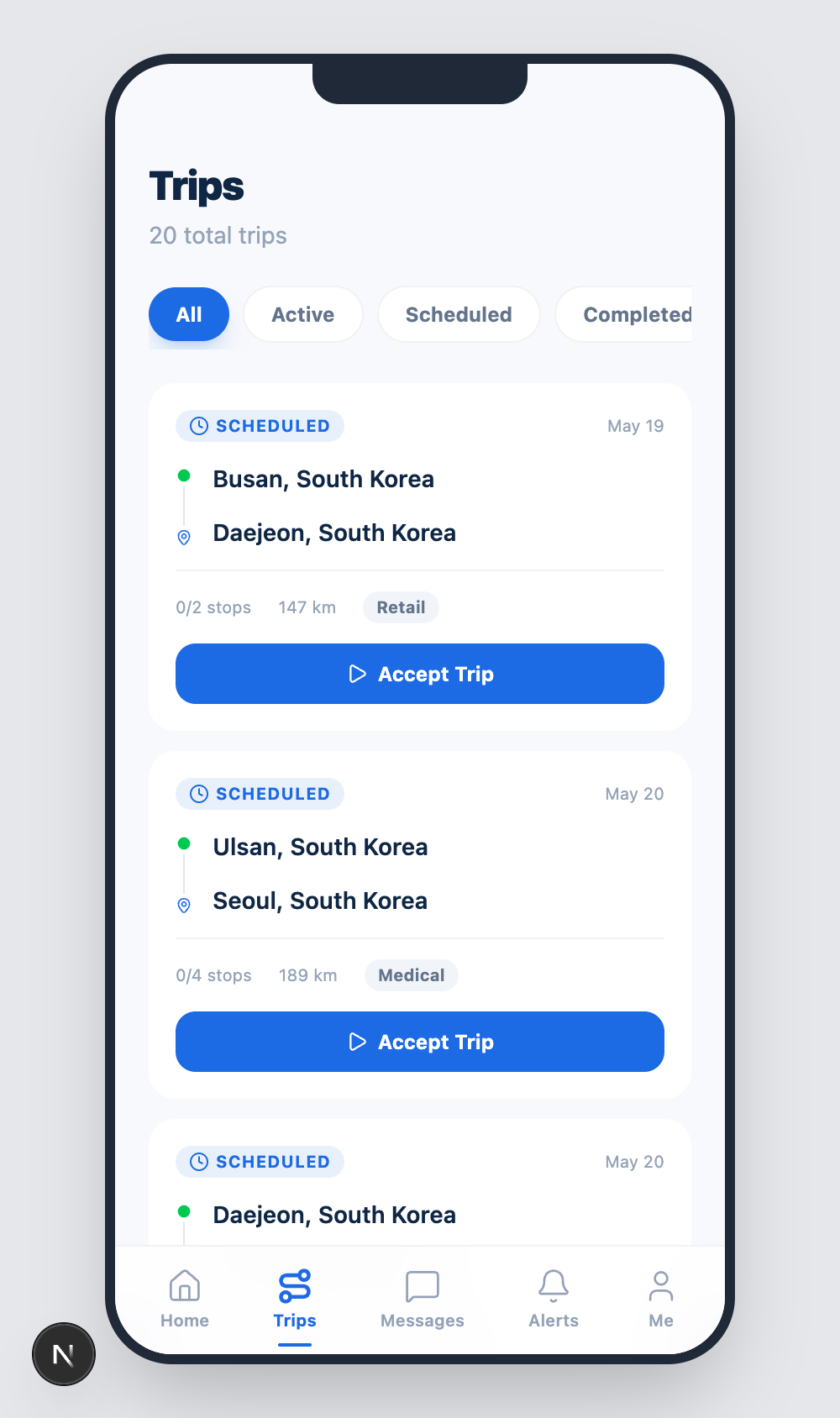
Header
The top of the page shows the total count (e.g. 20 total trips) and four filter pills:
| Filter | Includes |
|---|---|
| All | every trip ever assigned to you |
| Active | trips currently in progress |
| Scheduled | upcoming, not yet started |
| Completed | already wrapped up |
Tap a pill to filter. The list re-orders instantly.
Trip card
Each row is a card with:
- A status pill —
SCHEDULED,IN PROGRESS,DELAYED, orCOMPLETED. - The date (e.g. May 20).
- Origin → Destination in big text.
- Stops completed (e.g. 0 / 4 stops) and distance in km.
- The load type (Retail, Medical, Auto Parts, Electronics, Food, …).
- An action button on the right.
Action button
The button changes based on the trip status:
| Status | Button | Behaviour |
|---|---|---|
SCHEDULED | Accept Trip | Confirms you'll take the trip. Moves it to IN PROGRESS. |
IN PROGRESS | Complete Trip | Closes the trip and emits a trip-end event. |
DELAYED | (no button) | Dispatch must intervene. Use Messages to flag the cause. |
COMPLETED | (no button) | Read-only entry. |
When to accept
You should only accept a trip when:
- You are physically able to start within the scheduled window.
- Your vehicle has no open critical Alerts.
- You have completed your pre-trip checks (HOS, fuel, inspection).
Accepting locks the trip to you — other drivers will no longer see it as available.
When to complete
Tap Complete Trip when:
- All stops in the trip are physically delivered.
- You have parked the vehicle.
- The dashcam has finished writing the trip video.
The trip is marked completed, the dashboard counters update, and dispatch is notified.
Delayed trips
A trip flips to DELAYED if it has missed an ETA threshold. The card stays on the list but cannot be self-completed — dispatch will reach out via Messages to decide whether to extend, reassign, or abort.