Theme
Alerts
The Alerts tab shows notifications routed specifically to you — your vehicle, your trips, your account.
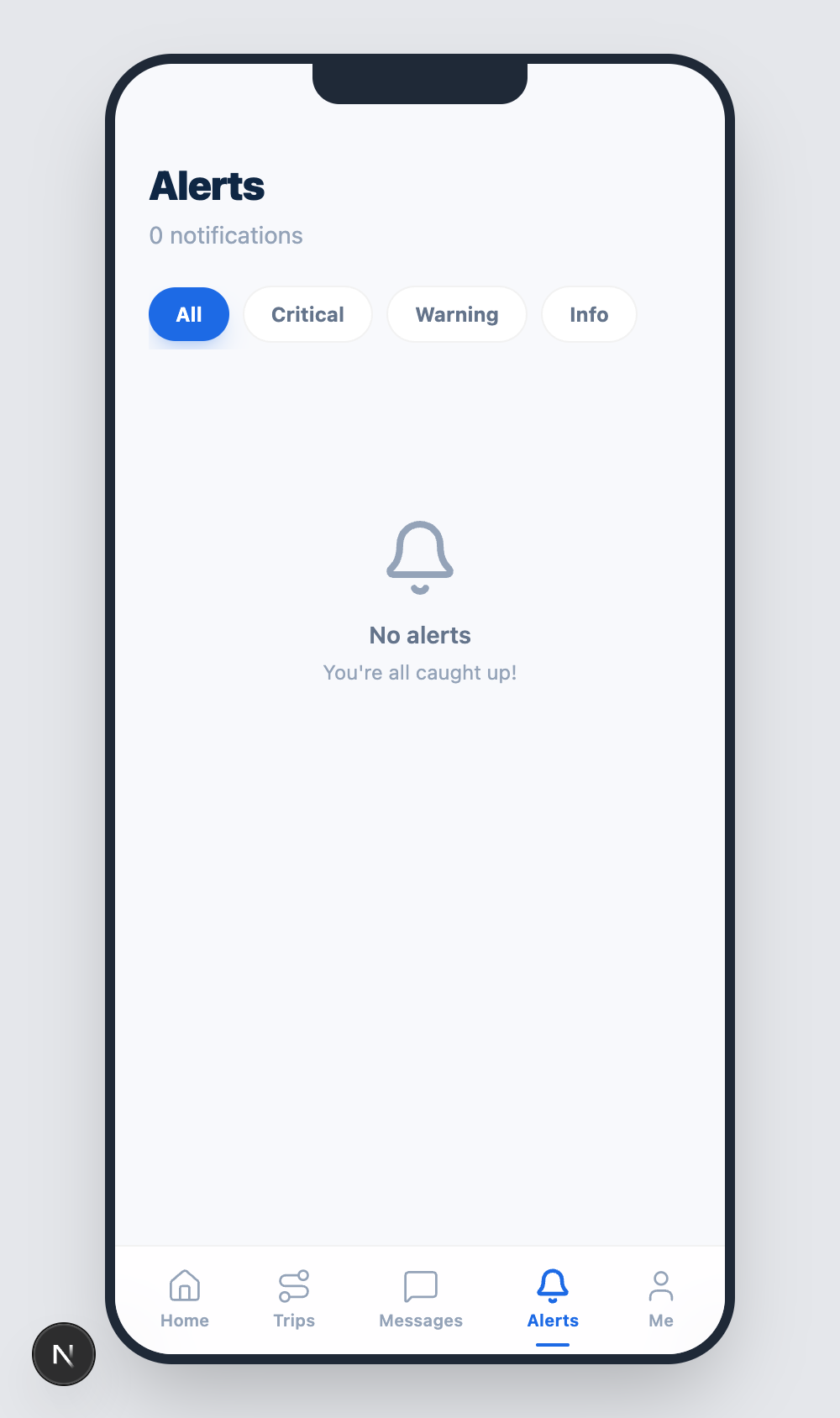
Filter pills
Four pills at the top let you filter:
| Pill | Includes |
|---|---|
| All | every alert |
| Critical | red alerts requiring immediate action |
| Warning | yellow alerts to monitor |
| Info | informational notifications |
The header also shows a running notification count (e.g. 0 notifications).
Alert sources
Alerts can come from:
- AI Risk engine — your truck's telemetry exceeded a threshold (high NOx, coolant temperature, abnormal RPM band).
- Maintenance — a service ticket was opened or updated for your vehicle.
- Dispatch — trip status changes (assigned, reassigned, cancelled).
- System — account-level events (password change, role update, login from a new device).
Acting on an alert
Tap an alert to see the full detail. For most alerts you can:
- View linked record — open the trip, ticket or vehicle the alert refers to.
- Acknowledge — clear it from the unread list.
- Escalate — message dispatch directly from the alert.
Critical alerts
A Critical alert means the engine, brakes, or after-treatment is reporting a fault that can compromise safety. Pull over safely, follow the action shown in the alert, and contact dispatch.
Empty state
When you are caught up, the tab shows No alerts — You're all caught up!. New alerts arrive in real time and the Unread counter on your Home screen updates accordingly.