Theme
Dispatch & Routing
The Dispatch module is the operations cockpit for active and scheduled routes.
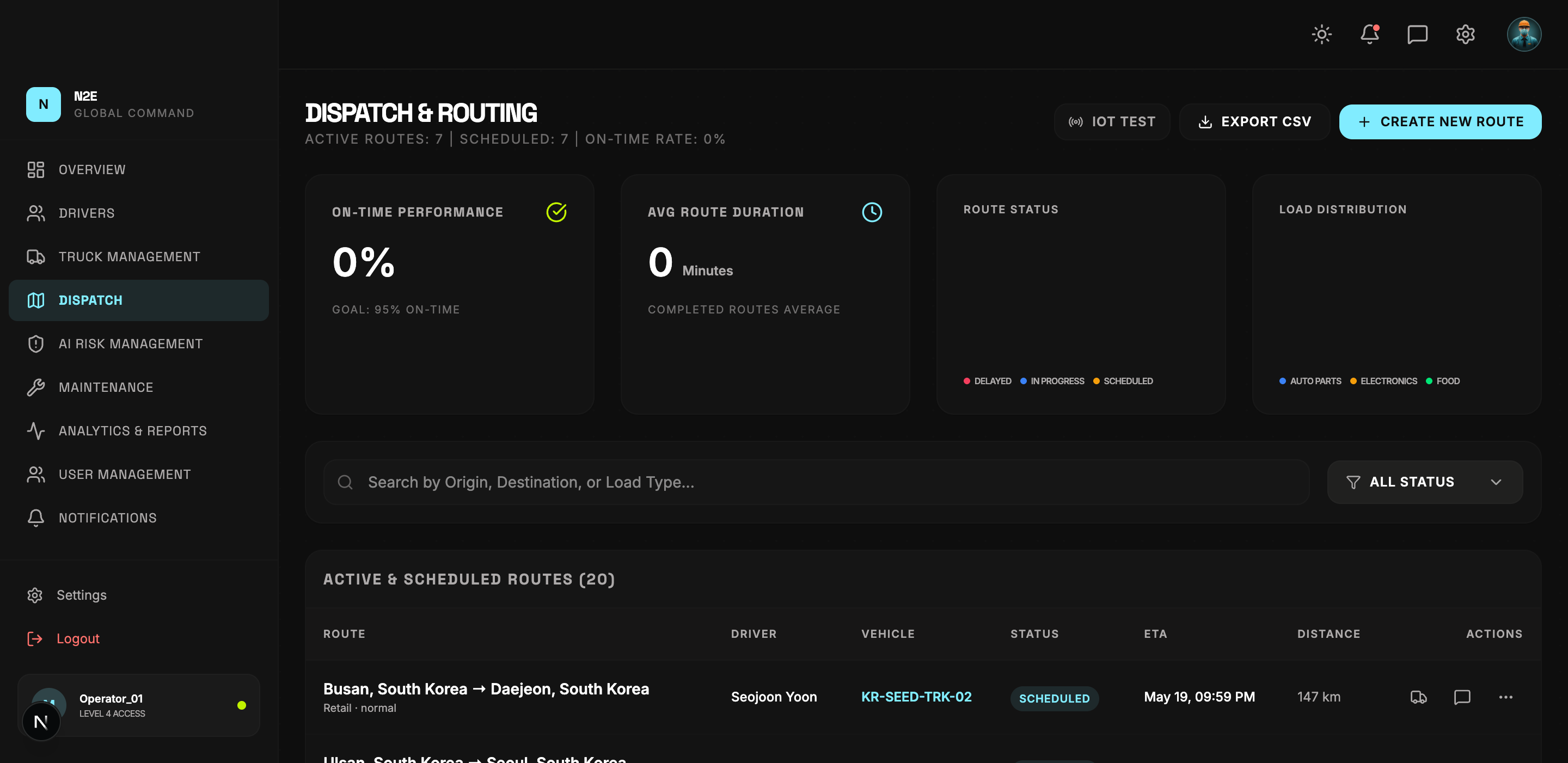
Layout
The page is divided into three bands:
- Header strip — active route count, scheduled count, on-time rate, plus the IOT TEST, EXPORT CSV and CREATE NEW ROUTE buttons.
- KPI panels — On-time performance, average route duration, route status distribution and load distribution.
- Routes table — every active and scheduled route with driver, vehicle, status, ETA and distance.
Creating a route
- Click CREATE NEW ROUTE.
- Pick the origin and destination.
- Assign a driver and a vehicle (only those in the active pool are listed).
- Set the load type, weight and any special handling notes.
- Save. The route appears in the table with an initial SCHEDULED status.
Status lifecycle
Routes typically move through:
SCHEDULED → DISPATCHED → IN PROGRESS → ARRIVED → COMPLETED
Each transition is recorded in the audit log and reflected in the on-time KPI.
Filtering and search
- The search bar matches by origin, destination, or load type.
- The ALL STATUS dropdown filters by route status.
- Click any row to inspect the full route record, see the live map and message the driver.
IoT Test
Operators with the appropriate role can use IOT TEST to inject simulated telemetry. This is useful during onboarding and demos — see Troubleshooting for details.
Exporting
EXPORT CSV writes out the current filtered table including the route ID, driver, vehicle, status, ETA and distance columns.